How to Track AI Search Referral Traffic in GA4 (And Actually Make Sense of It)
Last updated: 28 July 2026
Track AI search referral traffic in GA4 by creating a custom channel group that captures sessions from ChatGPT, Perplexity, and Bing Copilot before they vanish into direct or organic traffic. Most GA4 accounts miss these referrals entirely because AI tools don't send traditional referrer data. This guide walks you through the exact filter logic and regex patterns needed to isolate AI-driven sessions, then shows you how to measure their impact on your conversion funnel.
Word count: 77
GA4 has no native understanding of AI referral sources. When a user clicks a ChatGPT citation link, the referrer string is either stripped entirely (landing the session in "direct") or passed through as a generic domain that GA4 folds into organic or referral with no label you can filter on. AI-driven visits accumulate invisibly inside your existing reports, and you have no way to measure their volume, behavior, or conversion rate without manual intervention.
That gap has real consequences. Visitors arriving from AI citations convert at 4.4 times the rate of organic search traffic and spend 68% longer on-site, per Swydo's AI traffic analysis. Losing those sessions inside a "direct" catch-all means you are making content and budget decisions without the data that would most clearly justify AI-focused investment.
After following this tutorial, you will have:
- A custom channel group in GA4 with dedicated rules for ChatGPT, Perplexity, and Bing Copilot referral domains
- A Traffic Acquisition view filtered to surface only those channels
- A baseline you can track week over week
One honest caveat up front: this setup captures click-through traffic only. Sessions where a user reads an AI answer and navigates to your site directly, without clicking a cited link, still land in "direct" and no GA4 configuration can recover them. For full AI visibility coverage, that gap requires a separate layer of prompt-tracking at the engine level. For measurable referral traffic, the GA4 setup below is the right starting point.
Before You Start: What You Need in Place
To track AI search referral traffic in GA4, you need an active GA4 property (not Universal Analytics) already collecting hits, Editor or Administrator access to that property, and a confirmed list of AI referrer domains to filter against. Without all three, the setup steps below will not produce reliable data.
The GA4 Property Requirement
This guide assumes GA4, full stop. Universal Analytics was sunset in July 2023, and any property still running on it cannot be configured for the channel groupings or exploration reports this workflow depends on. If you are unsure which version you have, check the property ID in Admin: GA4 IDs start with a "G-" prefix; UA IDs start with "UA-".
Your web data stream also needs to be actively collecting hits before you build any segments or custom channel groups. Building a segment on a stream with no historical data gives you a valid configuration and zero rows to analyze. Aim for at least 30 days of clean data before drawing conclusions from any AI traffic report.
Access Levels and Tag Manager
You need Editor or Administrator role on the GA4 property to create custom channel groups and modify data streams. Viewer access is not enough. Google Tag Manager is technically optional, but strongly recommended: it lets you deploy and update event tags without touching your site's codebase, which matters when AI referrer domains expand (and they will).
One trade-off worth naming: GTM adds one more system to maintain and one more point of misconfiguration. Teams with a single developer and no tagging governance sometimes find that direct gtag.js implementation is cleaner to audit. If your GA4 property has a history of duplicate event firing or mismatched stream IDs, resolve those issues before adding AI-specific tags. Layering new tracking onto a broken foundation produces broken AI traffic data, as Workshop Digital's analysis of the GA4 referral gap makes clear when it flags "(not set)" sessions as the primary place AI referrals go missing.
The Referrer Domain List
Have this list ready before you open GA4:
- chat.openai.com
- perplexity.ai
- you.com
- bing.com/chat
- claude.ai
- gemini.google.com
These six domains cover the majority of AI-originated referral sessions visible in GA4 today. You will use them repeatedly: in segment conditions, in channel group rules, and optionally in GTM trigger filters. Keep the list in a shared doc your team can update, because the domain landscape shifts. Mistral, Meta AI, and others are adding web-browsing features on a rolling basis, and a domain you do not have in your filter list is a session that lands in "Direct" or "(not set)" instead of your AI channel.
One limitation to flag upfront: a meaningful share of AI-assisted visits never appear as referrals at all. When a user copies a URL from a ChatGPT response and pastes it directly into a browser, GA4 records that session as direct traffic with no referrer string. No filter or channel group catches it. The referral-based approach this article covers is the most practical method available, but treat the numbers it produces as a floor, not a ceiling.
Step 1: Identify Which AI Platforms Are Already Sending You Traffic

Before you can optimize for AI-driven referrals, you need to know which engines are already sending sessions your way. Open GA4, go to Reports > Acquisition > Traffic Acquisition, and switch the primary dimension to "Session source/medium." Filter or search for known AI referrers: perplexity.ai, ai.com (ChatGPT's consumer domain), claude.ai, and gemini.google.com. Whatever shows up there is your real baseline, not an estimate.
Running the Session Source/Medium Report
The fastest path is the Traffic Acquisition report, not Explore. Change the primary dimension to Session source/medium, set your date range to at least 90 days, and type "ai" or "chat" into the search field. You will surface referral rows you probably did not know existed. Fatjoe's GA4 tracking walkthrough confirms this dimension swap is the step most teams skip, defaulting instead to the channel grouping view, which buries AI referrers inside "Referral" or misclassifies them as "Direct."
One limitation worth naming: GA4 only captures sessions where the referrer header was passed. ChatGPT's web interface strips the referrer in many cases, so traffic originating from a ChatGPT conversation often lands in GA4 as direct/(none). Your AI referral numbers in GA4 are a floor, not a ceiling. The actual volume is higher.
Cross-Checking Search Console
Search Console does not track ChatGPT or Perplexity clicks at all. Its data covers Google Search properties only. However, it is still worth opening the Links report to see if any AI-adjacent Google properties (such as SGE-influenced result pages or Gemini surfaces) are generating referral clicks back to your domain. The overlap is small today, but the pattern is worth establishing now before those surfaces scale.
Orbitmedia's GA4 referral analysis found that searching for "chat" inside the Traffic Acquisition source column reliably surfaces ChatGPT.com, Perplexity, and Copilot rows that would otherwise go unnoticed in a standard channel report. Cross-referencing that list against your Search Console performance data tells you whether any of those sessions are also converting on queries Google is tracking.
Building Your Baseline Before Changing Anything
Record your current direct/(none) session volume before you touch channel groupings or add any UTM parameters to AI-sourced links. The next steps in this process (custom channel groups, regex filters) will reclassify some of what currently sits in direct traffic. If you do not capture a pre-change snapshot, you will not be able to tell whether a drop in direct volume reflects better attribution or an actual traffic loss.
Pull a 90-day export: total sessions, direct sessions, and referral sessions broken out by source. Save it. That file becomes your control group for every measurement decision that follows.
Step 2: Create a Custom Channel Group for AI Search Referrals

To track AI referral traffic as its own channel in GA4, go to Admin > Data Display > Channel Groups, create a new group by copying the default, add a channel definition named "AI Search," and write a regex rule that matches the session source against all major AI domains. Then move that channel above Organic Search in the priority order so GA4 applies the AI rule first.
Navigate to Channel Groups and Start a New Group
Open GA4, click the Admin gear in the bottom-left corner, and look under Data Display for Channel Groups. You will see the default channel group listed there. Rather than editing the default (which GA4 locks against deletion), click the three-dot menu next to it and select "Create a Copy." Rename the copy something explicit, like "AI + Default Channel Group," so anyone on your team knows at a glance what it does. Playhouse Digital's GA4 channel group walkthrough documents this copy-first approach as the safest way to preserve your existing attribution logic while adding new rules.
Write the Channel Definition Rules
Inside your new group, click "Add channel" and name it "AI Search." The rule type you want is Session source, condition "matches regex," and the pattern should cover every major AI referrer in one expression. A working pattern as of mid-2026 looks like this:
chatgpt\.com|perplexity\.ai|claude\.ai|gemini\.google\.com|copilot\.microsoft\.com|you\.com|phind\.com|poe\.com
Keep the list maintained. New AI interfaces launch regularly, and a domain you omit simply falls through to Organic Search or Direct, which quietly understates your AI traffic. The step-by-step guide from Ideahills on measuring generative AI traffic in GA4 recommends auditing this regex quarterly as new tools gain referral volume.
One trade-off worth naming: this approach only captures sessions where the browser passes a referrer header. ChatGPT, in particular, sometimes strips referrer data when users click links inside its interface, which means a portion of genuine AI-driven visits will still land in Direct. There is no clean fix for that at the GA4 channel level. You can partially compensate with UTM parameters on any content you control, but for organic citations on third-party pages, some undercounting is unavoidable.
Order the AI Search Channel Above Organic Search
Channel priority is the step most teams miss. GA4 evaluates channel definitions from top to bottom and assigns the first match. If Organic Search sits above your new AI Search channel, a session from perplexity.ai will match Organic Search first and never reach your rule.
Drag the AI Search channel to the top of the list, or at minimum above Organic Search. Save the group, then set it as the active channel group in your reports by selecting it from the channel group dropdown in the Traffic Acquisition report. The Two Octobers step-by-step GA4 AI traffic guide flags channel ordering as the most common configuration error, noting that teams often build the regex correctly but leave the priority wrong and then conclude AI traffic is negligible when the data is simply miscategorized.
Step 3: Tag AI Referral URLs with UTM Parameters Using a Redirect Layer

When an AI engine cites a page on your site, you generally cannot control the URL it links to. But for any content you distribute yourself (press releases, guest posts, partner pages, social profiles), you can append UTM parameters so GA4 receives structured source data even when the referrer header is stripped.
The UTM Structure That Works for AI Traffic
Use a consistent naming convention across every AI-sourced link you control:
utm_source: the AI platform name (chatgpt, perplexity, copilot)utm_medium: ai-referralutm_campaign: the content piece or campaign name
A URL for a ChatGPT-cited blog post would look like this:
https://yoursite.com/blog/post-title?utm_source=chatgpt&utm_medium=ai-referral&utm_campaign=q3-content
GA4 reads UTM parameters directly and will slot that session into your AI Search channel group automatically, provided your channel rule also checks for utm_medium matching "ai-referral." Add a second condition to your AI Search channel definition: Session medium matches regex ai.referral|ai-referral. That covers both hyphenated and dot-separated variants teams commonly use.
Where UTM Parameters Help and Where They Do Not
UTM tagging is most useful on content you publish or distribute. It does nothing for organic citations, where an AI engine pulls your URL from its index and links to it without any parameters you added. For those sessions, the referrer-based regex rule from Step 2 is your only tool.
One practical note: if you use a link shortener or redirect service between your UTM-tagged URL and the final destination, confirm that the redirect preserves query parameters. A 301 redirect that strips UTM values defeats the entire tagging effort. Test any redirect chain with Google's Campaign URL Builder and verify the parameters survive in GA4's Realtime report before rolling out at scale.
Step 4: Build an Exploration Report to Monitor AI Referral Trends

The Traffic Acquisition report gives you a quick read, but a custom Exploration gives you the flexibility to segment by landing page, compare AI channels against each other, and track conversion rates without switching views constantly.
Setting Up the Exploration
Go to Explore in the left navigation and create a blank exploration. Set the date range to 90 days. Add these dimensions: Session source, Session medium, Landing page, and your custom channel group. Add these metrics: Sessions, Engaged sessions, Engagement rate, Conversions, and Session conversion rate.
Drag Session source into the Rows section. Filter the segment to include only sessions where Session medium exactly matches "referral" or "ai-referral." This keeps the table focused on AI-originated traffic without noise from paid or email channels.
Reading the Data Correctly
A few numbers to watch from week one. First, compare the engagement rate of AI referral sessions against your site average. If AI visitors engage at a higher rate (more than 60% engaged sessions is a reasonable benchmark for most content sites), that is evidence the AI engines citing you are sending qualified traffic, not casual browsers.
Second, watch landing page distribution. If 80% of your AI referral sessions land on one or two pages, those pages are being cited heavily. That concentration is useful signal for content investment decisions.
Third, track the trend line, not just the absolute number. AI referral traffic is growing across most verticals. A flat trend when competitors are seeing growth is a signal worth investigating, even if your absolute session count looks acceptable.
Step 5: Set Up Alerts for Significant AI Traffic Changes
Set up GA4 alerts to catch meaningful drops in AI referral sessions before your next monthly review. A 30% week-over-week decline in AI Search channel sessions warrants immediate investigation to determine whether the change reflects a genuine traffic loss or a data processing delay.
Creating a GA4 Intelligence Alert
In GA4, go to Reports > Traffic Acquisition, click the bell icon in the top-right corner, and create a custom alert. Set the condition to: Channel group (using your custom group) contains "AI Search," metric is Sessions, condition is "decreases by more than," and threshold is 30%. Set the evaluation period to weekly and add your email address.
GA4's alerting system is not sophisticated. It does not distinguish between a genuine traffic drop and a data processing delay, and it will occasionally fire on noise. Treat alerts as prompts to investigate, not conclusions. When an alert fires, check the Realtime report first to confirm whether sessions are still arriving, then check the channel group configuration to confirm no rules were accidentally edited.
Frequently Asked Questions
Why does GA4 show AI traffic as "direct" instead of a referral?
GA4 records a session as direct when no referrer header is passed to your server. Several AI platforms, including ChatGPT's web interface, strip the referrer header when users click outbound links, making those clicks indistinguishable from direct navigation. The custom channel group in Step 2 catches sessions where the referrer is passed correctly, but sessions with no referrer header cannot be recovered through GA4 configuration alone. UTM parameters on controlled links offer partial compensation.
How often should I update the AI referrer domain list?
Audit the list at least quarterly. New AI tools with web-browsing features launch frequently, and established platforms sometimes change their referral domains when they update their interfaces. A practical trigger: any time you see an unfamiliar domain appearing in your Session source/medium report with meaningful session volume, check whether it is an AI platform and add it to your regex if so.
Can I track AI referral traffic without Google Tag Manager?
Yes. The custom channel group setup in Step 2 requires only GA4 Admin access, no GTM. GTM becomes useful when you want to fire custom events on AI referral sessions (for example, a specific event when a user from an AI source completes a form), but the baseline channel tracking works with your existing gtag.js implementation.
Will this setup work retroactively on historical data?
No. Custom channel groups in GA4 apply to data collected after the group is saved. They do not reprocess historical sessions. This is one reason the baseline export in Step 1 matters: once you activate the new channel group, your historical "direct" and "referral" numbers will not change, but your forward-looking AI channel data will start accumulating from the save date onward.
What is a realistic AI referral session volume to expect?
It depends heavily on your industry, content type, and how frequently AI engines cite your domain. Sites with strong topical authority in technical or research-heavy verticals tend to see AI referral sessions in the range of 2-8% of total organic traffic within 6-12 months of consistent content investment. Sites in commoditized niches with thin content see much less. The more useful benchmark is your own trend line: consistent week-over-week growth in AI referral sessions, even from a small base, indicates your content is being cited and that the channel is worth continued investment.
Does this setup capture traffic from AI Overviews in Google Search?
Not directly. Google AI Overviews are served within Google Search results pages, and clicks from them are attributed to google/organic in GA4, not to a separate AI source. There is currently no GA4-native method to isolate AI Overview clicks from standard organic clicks. Google Search Console's Performance report does not segment AI Overview clicks separately either, though Google has indicated this may change. For now, treat AI Overview traffic as part of your organic baseline and focus the custom channel group on external AI platforms.
If you want visibility beyond what GA4 can capture, including which AI engines are citing your brand in answers where users never click through, visit Seorav to see how prompt-level tracking works across ChatGPT, Perplexity, Claude, and Gemini.
Keep reading
Ranking in Google's AI Search: The Deterministic Signals That Actually Move the Needle
Learn how do you rank in SGE with the three signals Google's AI uses to cite sources: schema markup, entity salience, and structured factual claims.
Why AI Ignores Your Content (And How to Fix It)
Learn how to avoid AI content that gets ignored by LLMs. Covers RAG retrieval signals, schema, entity salience, and an answer-first structure checklist.
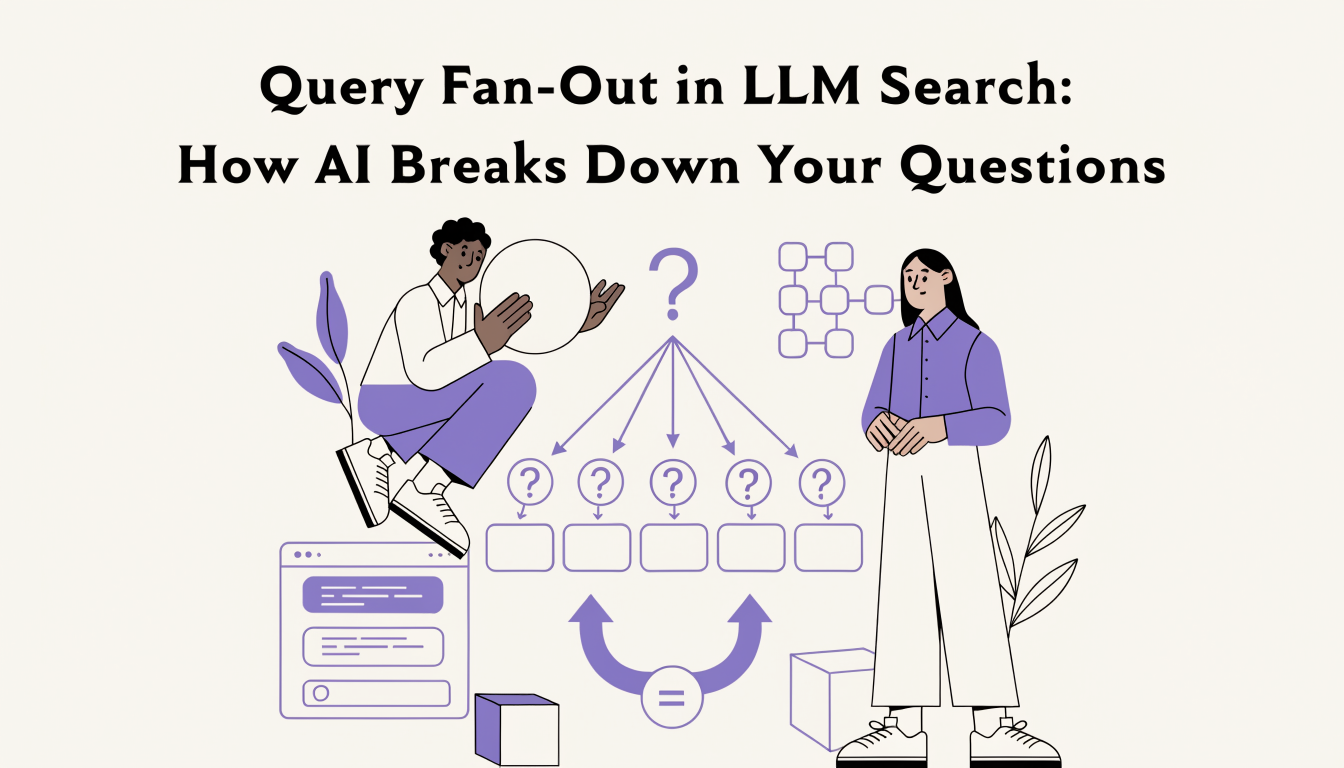
Query Fan-Out in LLM Search: How AI Breaks Down Your Questions
Learn what query fan-out in LLM search is, how AI splits your prompt into 3-8 sub-queries, and how to structure content to win more citation passes.