How to Set Up Automated SEO Reporting for Your Team
Last updated: 11 November 2026
Automated SEO reports reach your team through a three-step process: connect your data sources (Google Search Console, Analytics, your SEO platform), configure delivery settings in your reporting tool, and set a schedule. Most teams spend two to four hours on initial setup, then the system runs hands-off weekly or monthly. The real challenge isn't the tool itself but mapping which metrics matter to which stakeholders, since your content team needs different data than your executives do.
What Automated SEO Reporting Actually Gets You
Automated SEO reporting connects your data sources once, then generates and delivers reports on a fixed schedule without manual intervention. Teams that make the switch reclaim several hours per reporting cycle and get consistent data every time, not just when someone remembers to run the export.
The breakdown at scale is predictable. A single analyst pulling rankings, traffic, and conversion data by hand might manage one or two clients cleanly. Add five more stakeholders, a monthly cadence, and three separate data sources, and the process starts missing deadlines or producing reports that don't match each other. Enfra's breakdown of automated SEO reports puts it directly: automated reports collect search performance data, organize it into a consistent format, and deliver it on a recurring schedule with minimal human involvement. That consistency is the actual product.
The numbers make the cost of manual work concrete. Teams using spreadsheet-based reporting spend an estimated 80% of their reporting time on data collection and formatting, leaving almost nothing for analysis. That ratio flips once a pipeline is in place.
Before You Start: What You Need in Place
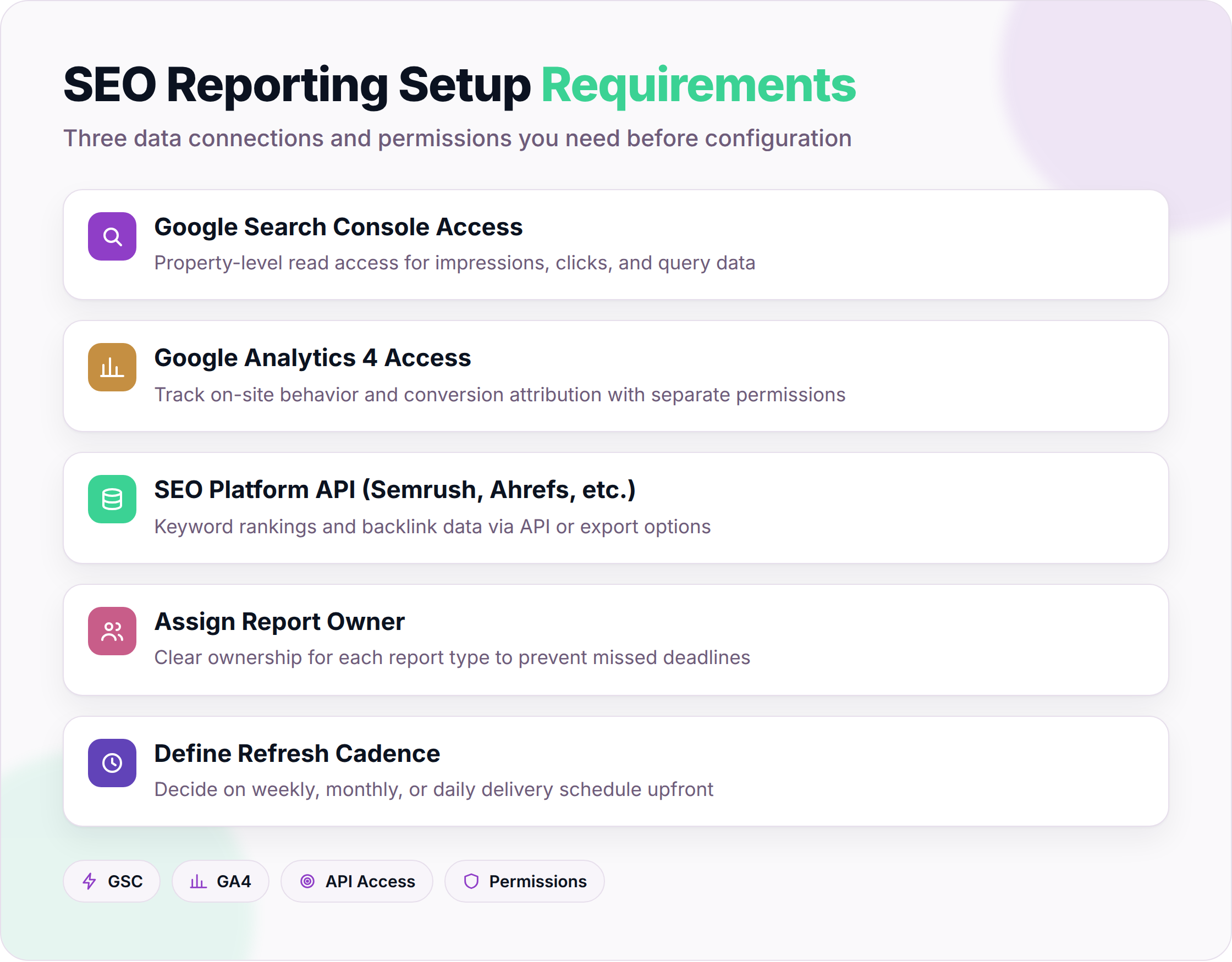
Automated SEO reporting requires three data connections, a clear owner for each report type, and a decision on refresh cadence before you touch any configuration. Getting these in place first prevents the most common failure mode: a pipeline that runs but delivers the wrong numbers to the wrong people.
Access Requirements
You need read access to Google Search Console, GA4, and whichever rank-tracking or SEO platform your team uses. Semrush, Ahrefs, and similar tools all have API or export options. GSC and GA4 are the anchors. GSC surfaces impressions, clicks, and query data; GA4 handles on-site behavior and conversion attribution. Your SEO platform fills the gap with keyword rankings and backlink data that neither Google property exposes directly.
A practical note on permissions: GSC requires property-level access granted by the site owner, and GA4 uses a separate permission model through Google Analytics admin. These are two distinct Google products with two distinct access flows. Teams that assume one login covers both regularly hit a wall mid-setup.
Improvado's analysis of automated client reporting identifies disconnected data sources as the leading cause of reporting pipeline failures, ahead of tool configuration errors or staffing gaps.
Team Roles to Identify First
Before you configure a single scheduled delivery, map out who receives what. A useful starting split:
| Role | Report type | Suggested frequency |
|---|---|---|
| Executive / client stakeholder | High-level KPI summary (traffic, conversions, ranking movement) | Monthly |
| SEO lead / strategist | Full keyword and technical audit data | Weekly |
| Developer or site owner | Technical SEO flags (crawl errors, Core Web Vitals) | Weekly or on alert |
Sending the same report to all three groups is one of the most common setup mistakes. Executives reading a 40-row keyword table stop reading. Developers receiving only a traffic summary miss the crawl issues they need to act on. Segment your audience before you build the template, not after.
Report Frequency and Data Freshness Trade-offs
Daily reports feel thorough but often mislead. GSC data carries a 48-to-72-hour processing lag, so a report that runs every morning is regularly surfacing data that is two days old without labeling it as such. GA4 processes most standard reports within 24 hours, but attribution data for conversions can lag further depending on your measurement setup.
The trade-off is real: higher frequency gives you faster anomaly detection, but it also increases the chance that a team member escalates a "drop" that is simply an incomplete data window. TapClicks' guide to automated SEO reporting recommends anchoring report schedules to your data source's actual refresh rate rather than to what feels operationally convenient.
Weekly cadence works for most SEO teams. Monthly cadence works for executive summaries. Daily delivery makes sense only for anomaly alerts tied to specific thresholds (a traffic drop above 20%, a spike in crawl errors), not for full report runs. Build the alert layer separately from the scheduled report layer. They serve different purposes and should not be collapsed into the same workflow.
Step 1: Choose an SEO Reporting Tool That Fits Your Workflow
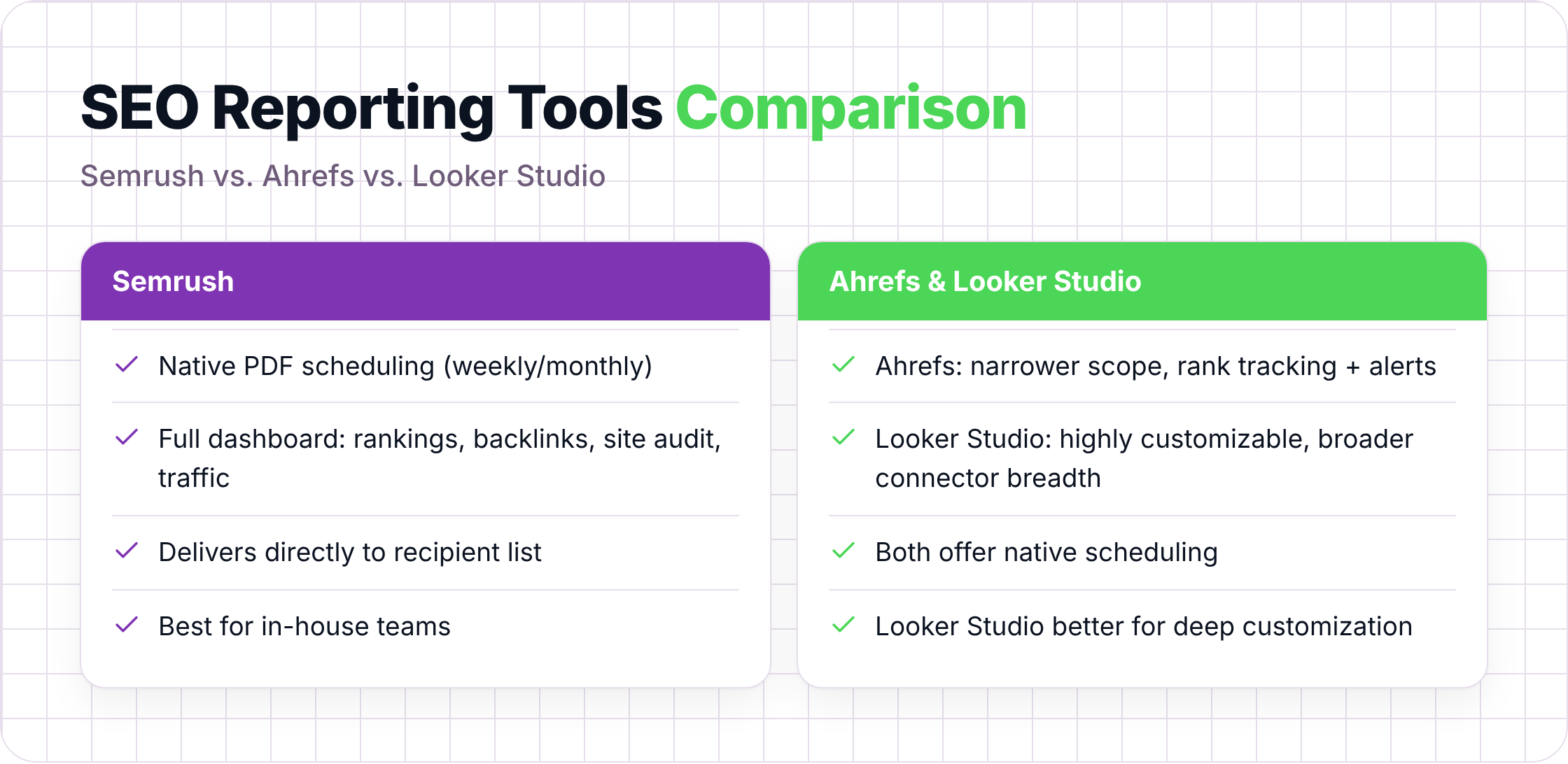
The right SEO reporting tool is the one your team will actually maintain. Semrush, Ahrefs, and Looker Studio each offer native scheduling, but they differ significantly in connector breadth, customization depth, and how well they surface keyword data before you build a single report. Matching the tool to your workflow upfront prevents a reporting setup that runs for two weeks and then quietly breaks.
Native Scheduling: Semrush, Ahrefs, and Looker Studio
Semrush's My Reports module lets you schedule PDF reports on a weekly or monthly cadence and delivers them directly to a recipient list. It covers rankings, backlinks, site audit summaries, and traffic estimates in one place. Ahrefs takes a lighter approach: its scheduled reports are narrower in scope, focused mainly on rank tracking and backlink alerts rather than a full dashboard. Both work well for in-house teams that live inside a single suite.
Looker Studio sits in a different category. It pulls from Google Search Console, Google Analytics, and dozens of third-party connectors, then lets you build pixel-level custom dashboards. The trade-off is setup time. A Looker Studio report that actually looks good and updates reliably takes several hours to configure correctly, and someone on your team needs to own it when a data source breaks. A practical comparison of six automated reporting tools puts connector breadth and maintenance overhead as the two variables that most often determine whether teams stick with a setup long-term.
When a Dedicated AI Visibility Tracker Adds More Value
If your team tracks how often your content gets cited by ChatGPT, Perplexity, or Gemini, a standard SEO suite won't cover that. Semrush and Ahrefs are built around Google's index. They don't poll AI engines, parse citation responses, or tell you which competitor keeps appearing in the answers your buyers are reading. A dedicated AI visibility tool fills that gap. The caveat: if your audience still arrives primarily through organic search and you have no active generative engine optimization program, the additional layer adds cost and complexity without a proportional return.
Evaluating Keyword Discovery as a Core Feature
One feature worth stress-testing before you commit: the ability to find keywords a site already ranks for. This sounds basic, but implementations vary. Some tools surface only the top 10 ranking URLs per keyword. Others show the full ranking distribution, including positions 11 through 50, where most content improvement opportunities actually live.
When evaluating any tool, pull a domain you know well and check whether the keyword data matches what Google Search Console shows for the same period. A variance of more than 20% on impressions is a signal that the tool's index coverage may be thinner than the marketing page suggests.
SE Ranking's reporting guide notes that keyword ranking data is the metric clients and stakeholders request most consistently, ahead of backlinks and traffic estimates. If a tool's keyword discovery is shallow, every downstream report built on that data inherits the same gap.
Step 2: Connect Your Data Sources and Configure Report Content
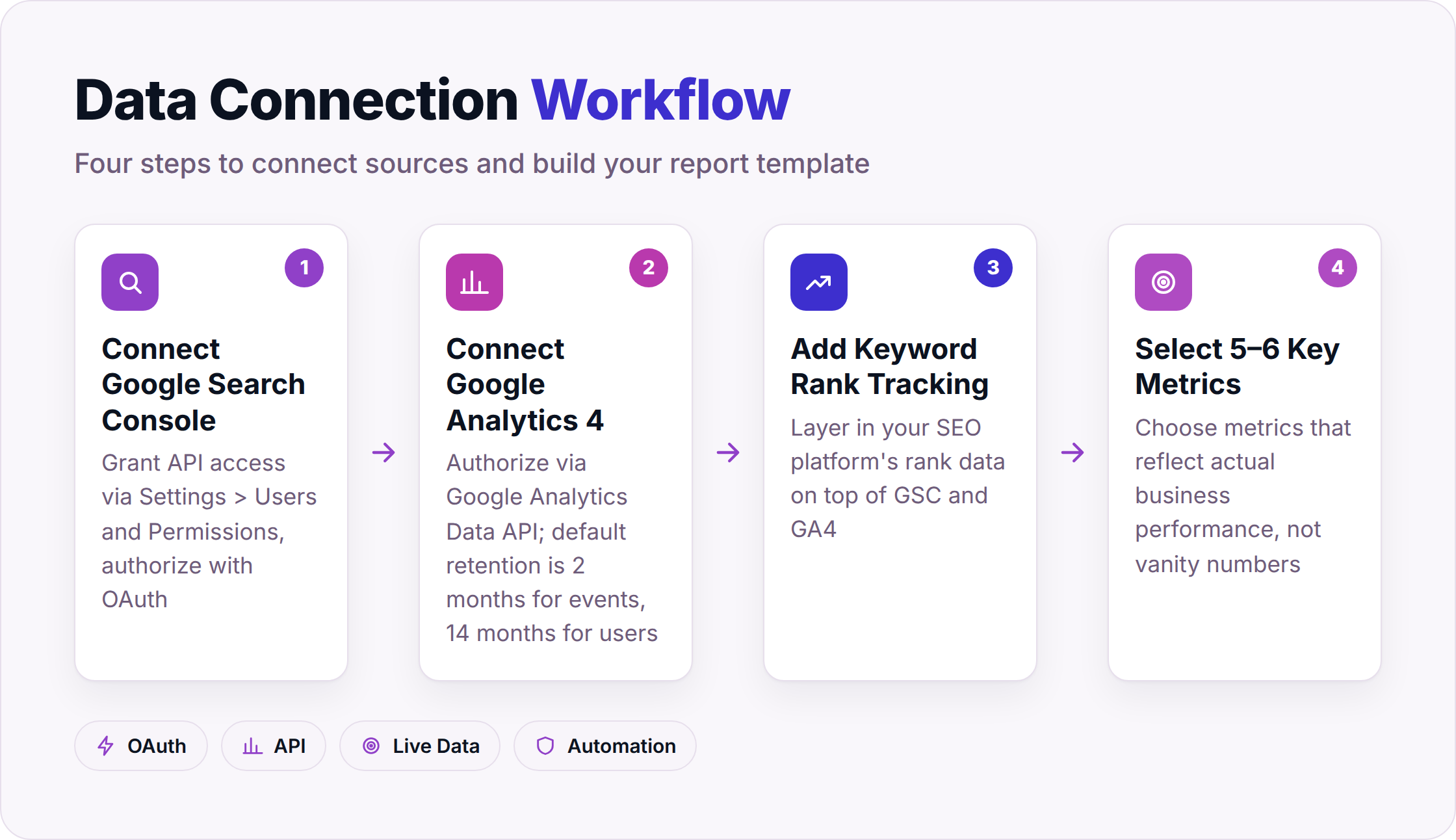
Automated SEO reporting starts with two core connections: Google Search Console for ranking and impressions data, and Google Analytics 4 for traffic and conversion data. Once both are linked via API, your reporting tool can pull live data on a schedule you set. Add keyword rank tracking on top of that, then select the five or six metrics that actually reflect business performance, and the report builds itself.
Link GSC and GA4 First
Both platforms expose data through official APIs, so the connection process is mostly an auth handshake. In GSC, you grant API access under Settings > Users and Permissions, then authorize your reporting tool using OAuth. GA4 follows the same pattern through the Google Analytics Data API. Once connected, your tool can query up to 16 months of GSC data and whatever GA4 retention window your property is set to (the default is two months for event data, 14 months if you've extended it).
Sourceloop's breakdown of automated SEO reporting notes that GSC and GA4 are the two most common API connections teams wire first, and that getting both live before adding any third-party rank tracker saves significant rework later.
Add Keyword Rank Tracking
GSC gives you average position, but it averages across all queries and all locations. That's useful for trend-spotting, not for knowing whether your target keyword sits at position 4 or position 14 on a Monday morning.
A dedicated rank tracker lets you define a specific keyword list, a target location, and a device type, then logs daily or weekly positions. That data feeds directly into the report alongside your GSC figures, so the reader sees both the aggregate picture and the keyword-level detail in one place.
Select the Right Metrics
More metrics is not better. A report with 30 columns gets skimmed; a report with six gets read. The core set for most teams:
| Metric | Source | What it tells you |
|---|---|---|
| Impressions | GSC | How often your pages appear in search results |
| Click-through rate (CTR) | GSC | Whether your titles and meta descriptions are working |
| Average position | GSC | Ranking trend for tracked queries |
| Organic sessions | GA4 | Actual traffic arriving from search |
| Goal completions / conversions | GA4 | Whether that traffic does anything useful |
| Keyword position (target terms) | Rank tracker | Precise ranking for priority keywords |
"Pick the five numbers that connect SEO activity to business outcomes, wire the APIs once, and template the rest" is the framing The SEO Agent's guide to automating client reports uses, and it holds up in practice.
The Trade-off Worth Knowing
This setup works cleanly for sites where organic search is the primary acquisition channel. It gets messier when a site runs heavy paid campaigns alongside organic, because GA4's session attribution can shift between channels depending on UTM tagging and the lookback window. If a paid click and an organic click happen close together, the last-touch model may credit paid, and your organic conversion numbers will read lower than they actually are. The fix is to cross-reference GSC click data (which is purely organic) against GA4 conversions rather than treating GA4 organic sessions as the single source of truth.
Step 3: Schedule Automated Delivery and Share Reports with Your Team
Once your data sources are connected and your template is built, the final step is configuring scheduled delivery so your team receives the right report at the right time without anyone queuing it up manually. This is where the question of how do I share automated SEO reports with my team gets a concrete answer: you set recipients, format, and cadence once inside your reporting tool, and the system handles every subsequent send.
Delivery Formats and When to Use Each
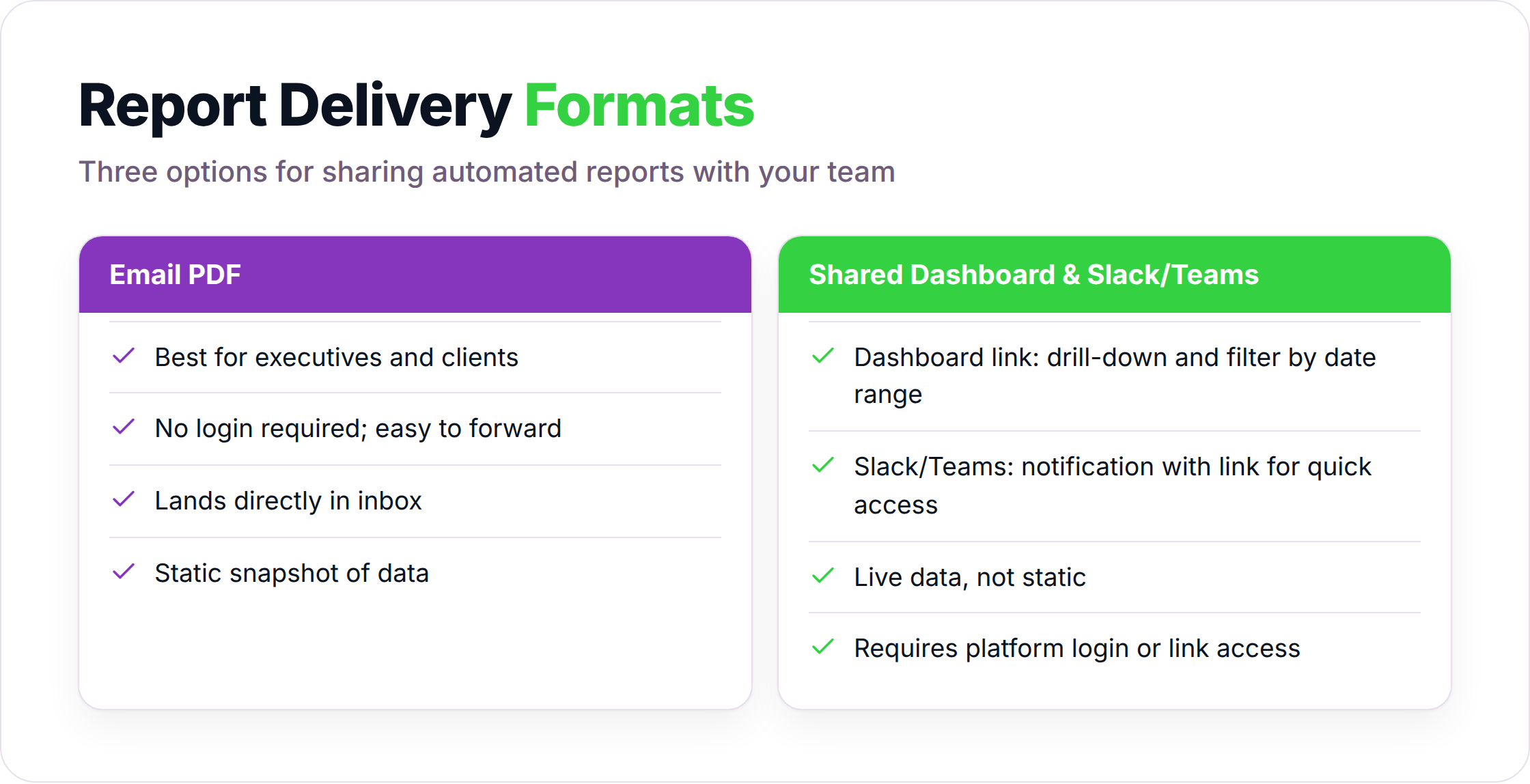
Most reporting tools offer three delivery options: email PDF, shared dashboard link, or Slack/Teams notification with a link. Each serves a different use case.
Email PDF works best for executive stakeholders and clients who don't log into your reporting platform. The report lands in their inbox, requires no login, and is easy to forward. The downside is that PDFs are static. If a stakeholder wants to drill into a specific keyword or date range, they can't.
A shared dashboard link (Looker Studio, Semrush, or a similar live view) works better for your SEO lead and any team member who needs to explore the data. You share the link once, set the refresh schedule, and the dashboard updates automatically. The reader always sees current data without waiting for the next scheduled email.
Slack or Teams notifications work well as anomaly alerts rather than full report delivery. A message that says "Organic traffic dropped 22% versus last Tuesday" is actionable. A full report pasted into a Slack channel is noise.
Configuring Recipients and Permissions
When you share automated SEO reports with your team, permissions matter as much as the delivery format. Most platforms let you set view-only access for stakeholders who should read but not edit, and editor access for the team members who maintain the template.
A few practical steps to get this right:
- In Semrush My Reports, add recipients under the scheduled report settings. Each recipient gets the PDF at the scheduled time. No platform login required.
- In Looker Studio, share the report URL with view access. Use Google account-level permissions so you can revoke access cleanly if a team member leaves.
- In GA4, use the "Share report" feature under Explore to send a snapshot or a live link. Note that live links require the recipient to have GA4 property access.
Set a calendar reminder to audit your recipient list every quarter. Reports sent to former employees or outdated client contacts are a data hygiene problem that compounds quietly.
Setting Thresholds for Alert-Based Delivery
Scheduled reports tell you what happened. Alert-based delivery tells you when something needs attention now. The two should run in parallel, not replace each other.
Most SEO platforms let you configure threshold alerts: notify the team if organic traffic drops more than 15% week-over-week, if a target keyword falls out of the top 10, or if crawl errors spike above a set number. These alerts go out immediately when the condition is met, regardless of your regular report schedule.
Keep alert thresholds conservative at first. A 10% traffic fluctuation is normal for most sites. Setting your alert at 10% means your team gets a notification almost every week, and they'll start ignoring it. Start at 20% to 25% and adjust based on your site's actual volatility over the first two months.
Frequently Asked Questions
Can I share automated SEO reports with clients who don't have access to my SEO tools?
Yes. Most reporting platforms let you export reports as PDFs or generate a shareable link that doesn't require the recipient to log in. Semrush's scheduled PDF delivery and Looker Studio's public or restricted sharing links both work this way. The PDF option is simpler for clients who just need to read the report. The shared link option is better if the client wants to filter by date range or explore specific metrics on their own.
How often should I send automated SEO reports to my team?
Weekly works for most SEO teams and developers who need to act on the data. Monthly works for executives and clients who want a high-level view of progress. Daily delivery is only worth setting up for anomaly alerts tied to specific thresholds, not for full report runs. Sending full reports daily creates noise and makes it harder to spot genuine trends.
What data sources should I connect first?
Connect Google Search Console and GA4 before anything else. GSC gives you impressions, clicks, and average position. GA4 gives you organic sessions and conversions. Together they cover the metrics most stakeholders care about. Add a rank tracker for keyword-level position data once both Google connections are stable. Adding a third-party connector before GSC and GA4 are working correctly usually means rework.
Why don't my automated reports match the numbers I see in Google Search Console directly?
The most common cause is a date range mismatch. GSC data has a 48-to-72-hour processing lag, so if your report pulls data through yesterday, some of those numbers are still incomplete. The second most common cause is sampling: some reporting tools query the GSC API with sampling enabled by default, which can produce figures that differ from the unsampled view you see in the GSC interface. Check your tool's API query settings and confirm the date range your report is actually pulling before assuming the data is wrong.
Do I need a separate tool to track AI search visibility alongside traditional SEO metrics?
If your content strategy includes generative engine optimization (appearing in ChatGPT, Perplexity, or Gemini answers), then yes, a separate tool is worth evaluating. Standard SEO suites like Semrush and Ahrefs don't poll AI engines or track citation frequency. If your traffic still comes primarily from Google organic search and you haven't started a GEO program, the additional tool adds cost without a clear return yet.
How do I make sure the right people get the right version of the report?
Build separate templates for separate audiences before you configure any delivery. An executive summary should contain five or six KPIs maximum. A full SEO report for your strategist can include keyword tables, technical flags, and trend charts. A developer-facing report should focus on crawl errors, Core Web Vitals scores, and indexing issues. Once the templates exist, assign each one to its own recipient list and schedule. Sending one report to everyone is the single fastest way to make sure nobody reads it carefully.
If you want to see how these data connections and delivery schedules work in practice, visit Seorav's integrations page to explore the sources your reporting pipeline can pull from and how sharing gets configured for different team roles.
Keep reading

How to Track Which AI Models Are Citing Your Website
Learn how to set up ai search citation analytics across ChatGPT, Perplexity, Claude, and Gemini. Includes tool comparisons, prompt setup, and competitor ga

Enterprise CMS Platforms: What They Are and How to Choose
Compare enterprise CMS platforms by architecture, cost, compliance, and AI features. Learn what separates enterprise-grade tools from standard CMS options.
How to Pick a Geo Optimization Tool That Actually Works for Multi-Region SEO
Compare the top geo optimization tools for multi-location SEO. See which platforms track rankings at city level, fix citation gaps, and scale across 100+ l